
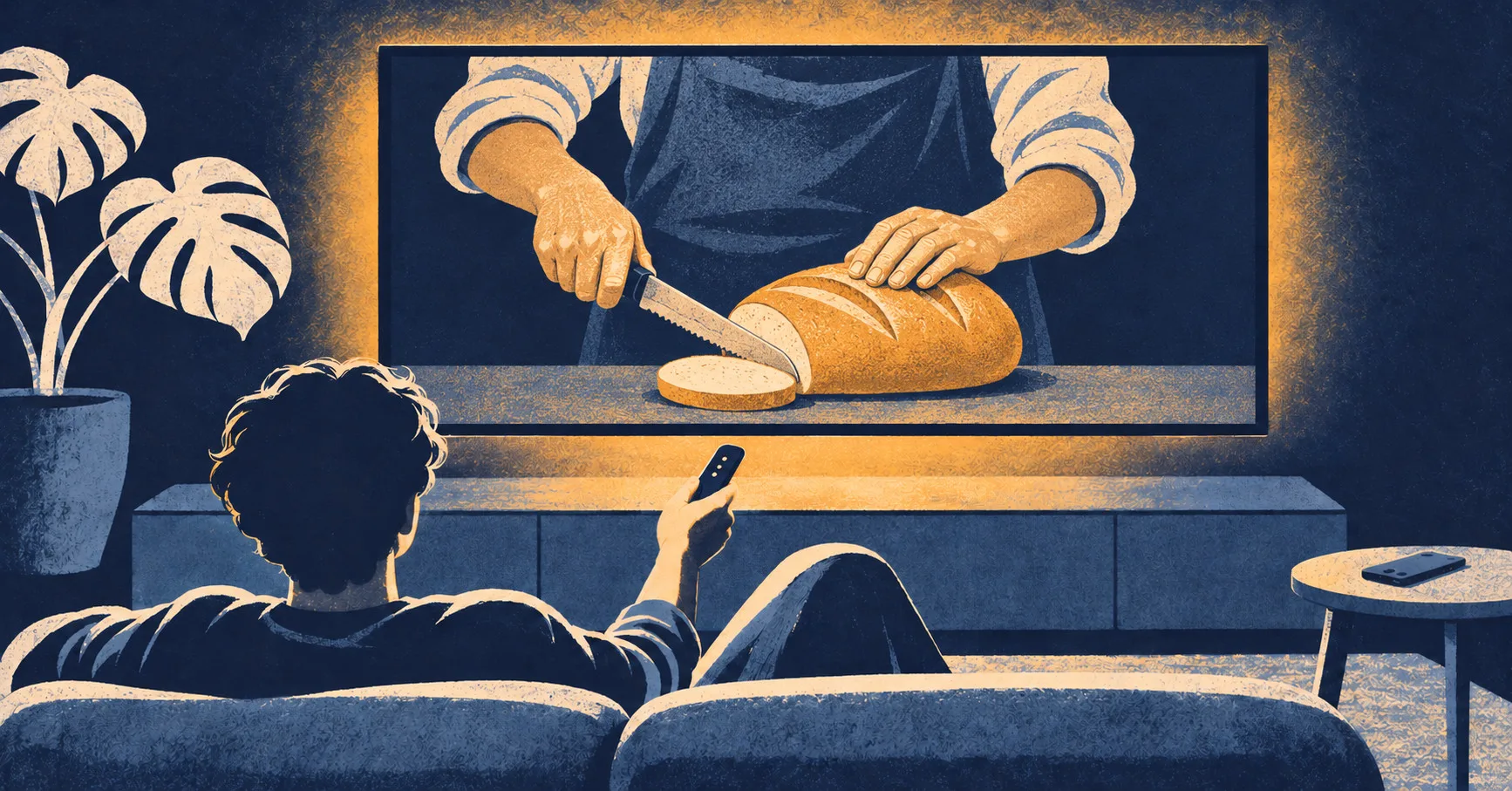
A missing video link, two apps to get through review, and a demo account with its own inbox.
I wanted to watch Patreon the way I watch YouTube or Netflix. Pick up the Apple TV remote, browse on the big screen, find something to put on. When it’s over, the remote is still in my hand and I can pick something else.
With Patreon, I’d find a video on my iPhone and AirPlay it to the TV. That worked until I wanted to watch another one, which sent me back to my phone. Or I’d open TikTok while the Patreon video was playing and AirPlay would helpfully put that on the television. I was already watching something.
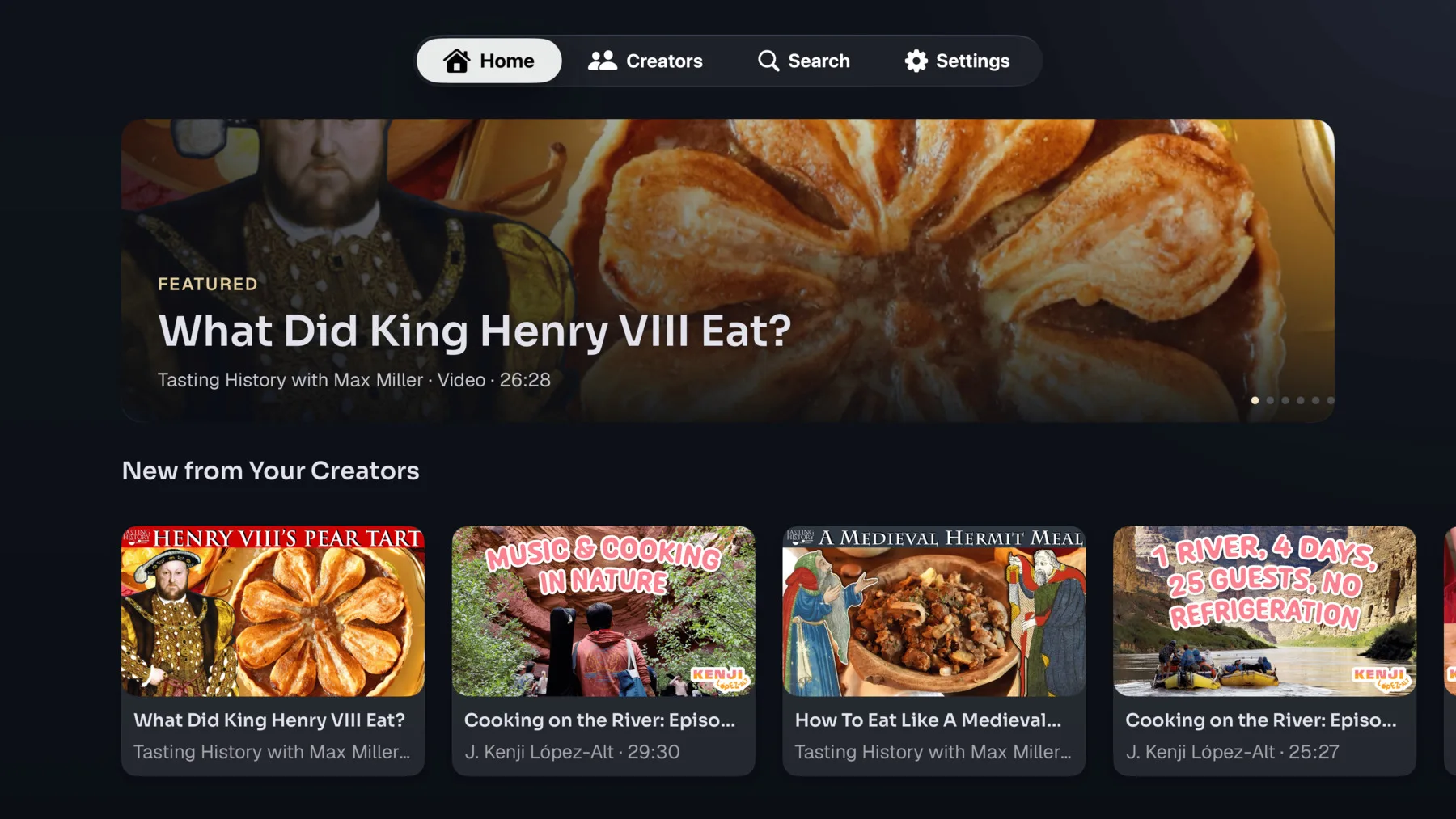
It seemed crazy to me that Patreon didn’t have a native Apple TV app. So I built the one I wanted. It’s called Patron Saint. I can browse the creators I support, pick a video or a podcast episode with the remote, and use my phone for whatever else I want.
How do you sign in on a TV?
I picked up the project in September, building on PatreonTV, an MIT-licensed project by DevelopmentCats. It already had a native player and a feed you could browse. The most valuable thing I inherited might have been a test they’d run with a paying Patreon account.
On Patreon’s website, the account could play a members-only video. Through Patreon’s official API, the same account got the post back, but without the link to play the video. Requests made with the session cookie, the little piece of data Patreon gives your browser to remember you’ve signed in, did get the link. Somehow I needed to get that sign-in onto a television.
On an iPhone, I could open Patreon’s actual sign-in page inside the app. Apple TV doesn’t offer that kind of embedded browser. PatreonTV had tried a pairing website. At one point its instructions involved opening developer tools in a desktop browser and copying out a cookie. That was handy for proving the player worked. It was a lot to ask of someone who’d just sat down to watch a cooking video.
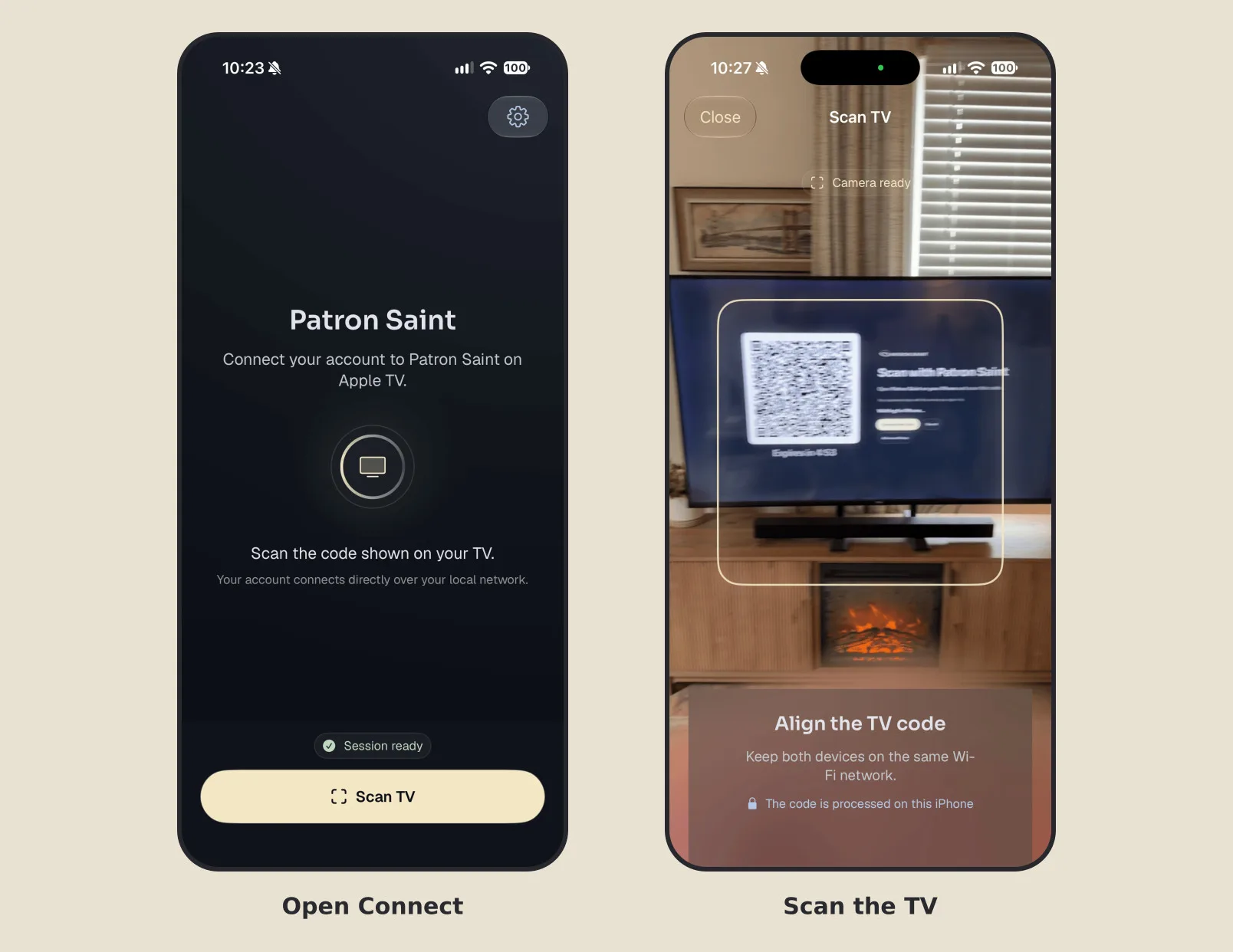
I ended up building a free iPhone app, Patron Saint Connect, for that one job. You scan a QR code on the TV and sign in on Patreon’s own page on the phone. Then you check that the same six digits are showing on both screens and tap Codes Match. That gives the phone permission to send your session to that TV. The TV checks it with Patreon before saving it in the Keychain, Apple’s secure storage. From then on the TV can play videos by itself.
Getting two apps through App Review
Apple asked me to take “Apple TV” out of the iPhone app’s subtitle. I’d put it there to explain what Connect connected to. The new subtitle was “Sign in to Patron Saint on TV.” Getting a reviewer through those seven words took a little more work.
At home, Connect used Bonjour, Apple’s local network discovery system, to find my TV over Wi-Fi. The two devices could then transfer the sign-in directly. Apple tried it with an iPhone and an Apple TV on separate networks. Scanning the QR code told the phone which TV to look for. It still had no way to reach it. I’d assumed that being in the same room meant being on the same network. All I had to do to break that assumption at home was turn off Wi-Fi on my phone.
I added a small relay on Cloudflare. Connect gives the local connection a short head start. If it can’t reach the TV that way, the devices can pass messages through the relay instead. The phone encrypts the Patreon session and the TV decrypts it. The relay can deliver the message without being able to read it, and it keeps no copy. Whichever route works, you still scan the same QR code and compare the same six digits.
Apple rejected the next TV build over pairing again. My best guess was that the review iPhone still had the older version of Connect, which could only find a TV on the same local network. For the resubmission I installed the publicly available iPhone app, turned off Wi-Fi, and paired it with the new TV build. I put the exact version of Connect in the review notes. With two apps involved, “I tested the latest build” was only half an answer.
Before you ever see those six digits on the TV, Patreon can email you a code to verify a new sign-in. The natural thing to do on an iPhone is leave Connect and go read the email. Connect now waits until you’re back and signed in before it opens the connection to the TV. There’s nothing to disconnect while you’re in Mail.
The reviewer’s code, meanwhile, went to my demo account. I gave it a dedicated inbox they could open themselves. That saved us from having to get an Apple reviewer and a guy in Pittsburgh on the phone at the same time to read off a code.
Once the reviewer could sign in, Apple had one more note. The rounded play triangle I’d used for the icon looked too much like another video brand’s mark. I swapped it for a gold halo. Given that I’d named the app Patron Saint, I probably could’ve gotten there a little sooner.
What goes above the icon
Put Patron Saint in the top row of your Apple TV Home Screen and highlight the halo. The space above it shows what you were watching and what your creators have posted. Apple calls that space the Top Shelf. Sometimes the video you want is right there before you’ve even opened the app.
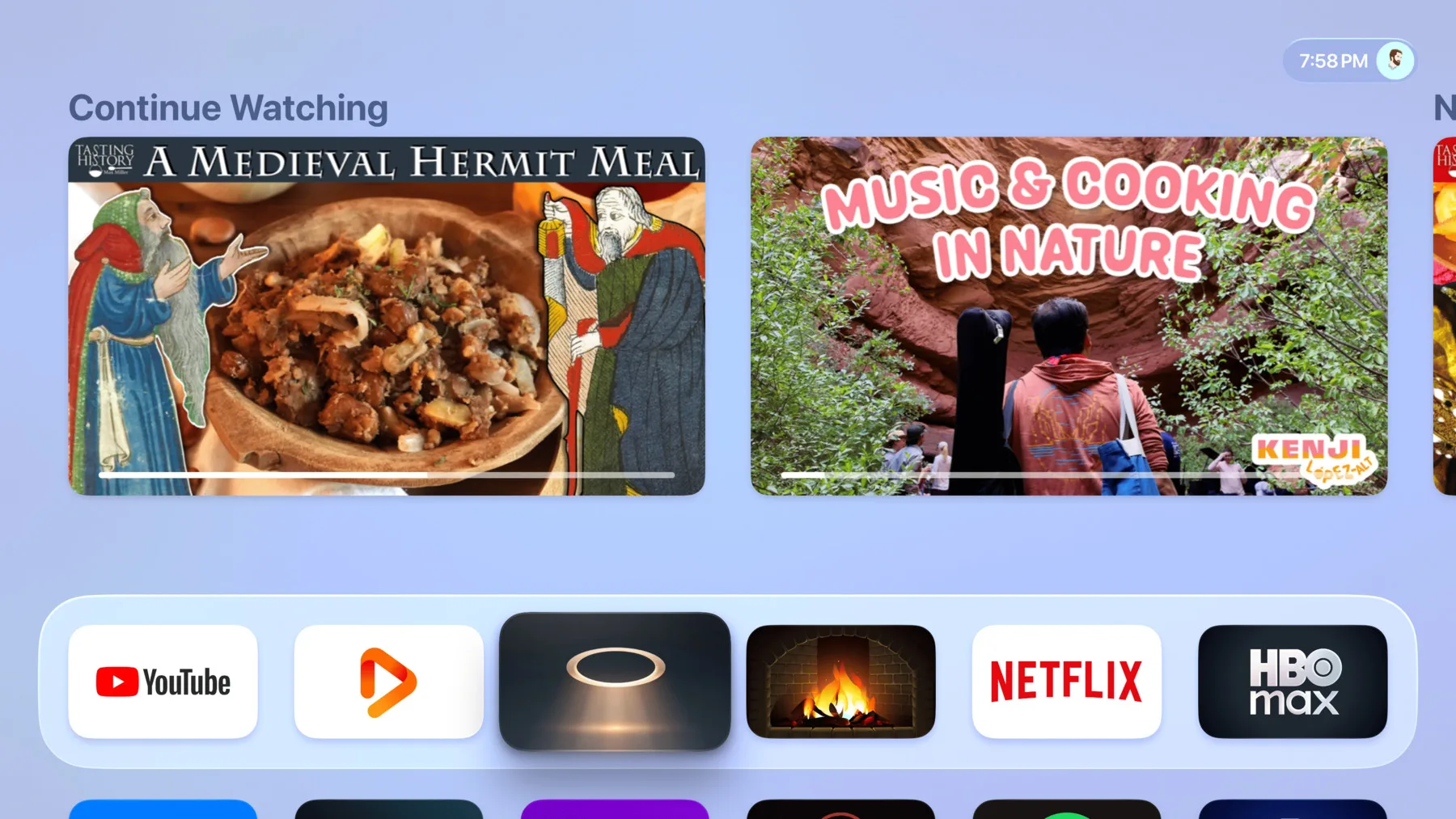
For Continue Watching to be useful, a video I started on Tuesday still has to play when I come back on Friday. Patreon’s playback links expire, so saving Tuesday’s link would make for a short-lived bookmark. Patron Saint saves the post ID and where I stopped. When I press Resume, it asks Patreon for a fresh link and picks up from that point. Patreon-hosted video and audio work this way. YouTube and Vimeo embeds open in their own apps, so Patron Saint leaves those out of Continue Watching.
For the New from Your Creators row, I had a different question. Say one creator uploads three videos this afternoon and another posted one this morning. In a newest-first list, the first creator gets the first three spots. I’d like to see that both of them posted before I decide whose videos I feel like browsing.
There’s a small Swift test for those exact four videos. A1, A2, and A3 are the afternoon uploads. B1 is the one from this morning.
XCTAssertEqual(ranked.items.map(\.post.id).prefix(2), ["A1", "B1"])
XCTAssertTrue(ranked.items.map(\.post.id).contains("A2"))
B gets the second spot. The row gives each creator a turn, then goes back for the other videos. A2 is still there if I keep scrolling. It’s a small choice, but it changes what I see the very first time I press Right.
Patron Saint made it onto the App Store in November, about ten weeks after my first commit. The Apple TV app is a one-time $9.99 purchase in the US. Patron Saint Connect is free. Your memberships stay with Patreon, so you’re still supporting creators the same way.
I’m working on versions for Google TV and Amazon Fire TV now. They share a Kotlin codebase, and both can open Patreon’s sign-in page right on the TV. After all the work that went into Connect, it’s nice to be able to skip the phone app this time. I’m also exploring whether I can bring Patron Saint to Roku.
Now I can put on Tasting History and open TikTok halfway through an episode if I feel like it. Max Miller gets to keep telling me what Henry VIII ate. When he’s done, I can pick the next video with the remote.